Learn Hero Cloud: PFTrack's Single-Shot Reconstruction Tool

Updated: Oct 1
Overview
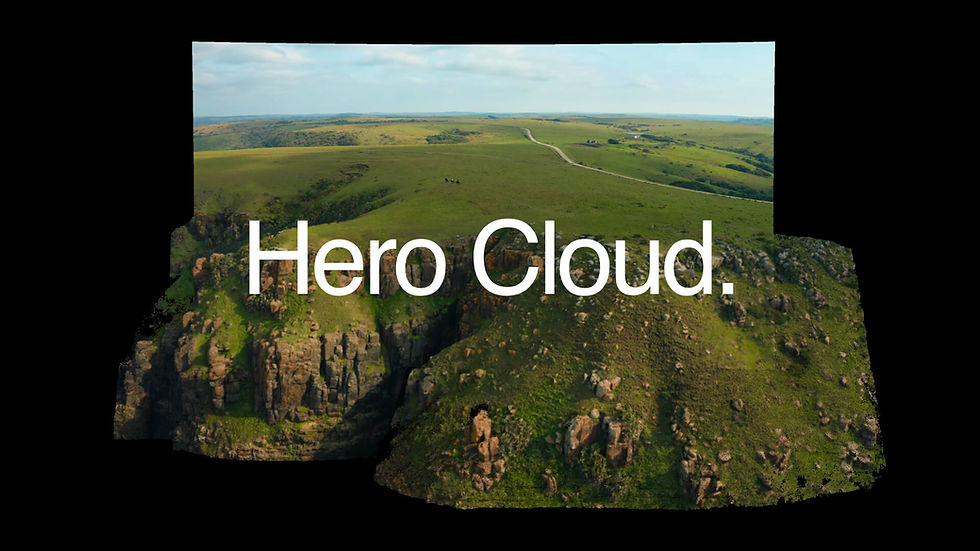
The new Hero Cloud node in PFTrack Version 26.05.19 generates high-quality dense point clouds from a single tracked camera move, with no LiDAR or additional capture hardware required. Build rich 3D environments directly from your existing camera solves, then export to your 3D package of choice or train Gaussian Splats in Postshot.
Get Started
Follow along with these tutorials using either your own footage or our example plate.
Already using PFTrack?
Hero Cloud ships in the latest PFTrack build, download from your account and the new node will appear in the Geometry category.
New to PFTrack?
Try PFTrack Solo for free and take a real plate from track through Hero Cloud.
Try PFTrack Solo
Want to follow along with the exact tutorial workflow?
Download the example footage used in these tutorials and try the same workflow shown in the videos.
Using Hero Cloud
What You’ll Learn
Generate dense point clouds from any solved camera
Control depth range and frame sampling
Optimise cloud density for your workflow
Clean up and refine your point cloud data
Workflow Summary
Start with your solved camera — Hero Cloud works with any camera track and solve in PFTrack. Complete your camera tracking workflow as normal before adding the Hero Cloud node to your tree.
Add the Hero Cloud node — Simply add the Hero Cloud node to your node tree.
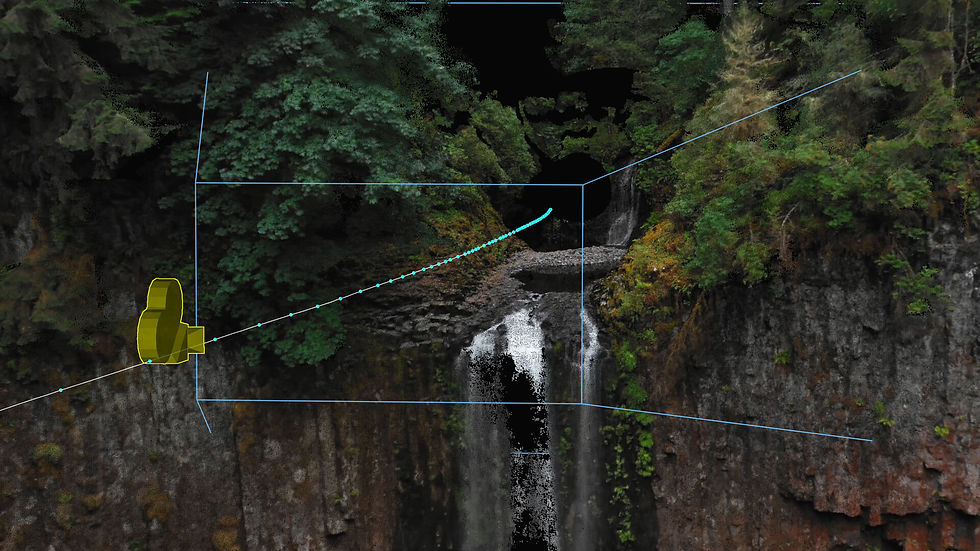
Define your depth range — Use the frustum visualisation in the Cinema view to set your near and far clipping planes. Focus on your area of interest by adjusting the far clipping plane, distant points often lack the detail needed for accurate depth reconstruction. Tightening the frustum to your hero elements ensures computational resources are focused where they matter most. The frustum can be animated throughout your shot for dynamic depth control as your subject or camera moves.
Adjust frame density — Control how many frames are used to generate depth maps using the Frame Density slider. The Shot Coverage graph updates in real-time, providing a dynamic estimate of depth map coverage for your chosen frame count.
Set cloud density — Balance detail against performance by adjusting the Hero Cloud density. Complex scenes may benefit from lower point counts to maintain viewport responsiveness in your pipeline later on.
Build your Hero Cloud — Click Build to automatically generate your dense point cloud. Once processing completes, the actual coverage line appears in the Shot Coverage graph, showing real-world depth data distribution.
Refine with point cloud editing tools — Edit your dense point cloud using PFTrack’s comprehensive toolkit:
Paint Tool: directly paint to remove unwanted points in the Cinema or 3D Viewer
Selection Tools: use lasso or box selection for precise control
Select Colours: key specific colour ranges to isolate and delete points by hue
Direct Manipulation: work in either Cinema or 3D Viewer for maximum flexibility
Exporting to USD for 3D Packages
What You’ll Learn
Export Hero Cloud data via USD
Import point clouds into Blender
Assign colours for render-ready assets
Export Workflow
Add a Scene Export node — Connect a Scene Export node to your Hero Cloud node in the tree.
Configure USD export — Select USD as your export format. USD (Universal Scene Description) provides compatibility with all major 3D packages including Maya, Houdini, Blender, and Unreal Engine.
Export your scene — Set your export path and click Export. Your solved camera, track points, and dense Hero Cloud will be packaged together in a single USD file.
Importing to Blender
Import USD file — In Blender, use File > Import > Universal Scene Description (.usd/.usdc) to bring in your PFTrack scene.
Locate your point cloud — The Hero Cloud will import as a point cloud object in your scene hierarchy, maintaining world-space positioning relative to your camera.
Assign vertex colours — The point cloud retains colour information from your original footage. In Blender’s Shading workspace, connect the Color Attribute node to your material to display photorealistic vertex colours from your capture.
Use Cases
Pre-light your shot against the actual scene geometry, rather than blocking against approximations
Environmental blocking for set extensions and CG integration
Spatial reference for matte painting and final composition
Collision geometry generation for simulation and animation passes
Exporting to Postshot for Gaussian Splats
What You’ll Learn
Export optimised data for Gaussian Splat training
Import into Jawset Postshot
Train production-ready Gaussian Splats
Postshot Export Workflow
Select Postshot export — In your Scene Export node, choose the Jawset Postshot export option. This format is optimised specifically for Gaussian Splat training workflows.
Configure export settings — Set your export path and any additional parameters. The export includes your solved camera, Hero Cloud point data, and frame metadata required for training.
Export your data — Click Export to generate your Postshot-compatible dataset.
Training in Postshot
Import to Postshot — Launch Postshot and import your PFTrack export. The software will automatically recognise the camera solve and point cloud data.
Configure training parameters — Set your Gaussian Splat training parameters based on scene complexity and desired output quality. The dense Hero Cloud provides strong initialisation data, helping training converge faster than from sparse point sets alone.
Train your Gaussian Splat — Begin training. The rich point cloud data from Hero Cloud improves convergence speed compared to training from sparse initialisations alone.
Render and export — Once training completes, render your Gaussian Splat for real-time playback, interactive viewing, or export to game engines and real-time platforms.
Why Hero Cloud for Gaussian Splats?
Most Gaussian Splat workflows today require either dedicated photo sets or LiDAR scans to initialise. Hero Cloud generates that initialisation data from production footage you’ve already shot. The dense point cloud provides:
Strong initialisation data, helping training converge faster than from sparse point sets alone
Improved spatial accuracy in areas with limited visual features
Consistent coverage across your entire frustum
No additional capture requirements beyond your existing footage
Key Benefits
Through-the-lens generation
Hero Cloud generates dense 3D data from your camera’s viewpoint — the same perspective you’re already working with. No additional hardware, multi-camera rigs, or LiDAR scanning required.
Real-time feedback
The Shot Coverage graph updates dynamically as you adjust parameters, giving you instant feedback on depth map distribution and frame sampling efficiency.
Flexible export pipeline
Whether you’re building CG layouts in traditional 3D packages or training Gaussian Splats, Hero Cloud integrates seamlessly into your existing pipeline.
Production-ready results
From blocking and layout to final Gaussian Splat renders, Hero Cloud delivers professional-quality point clouds optimised for real-world production workflows.
Try PFTrack Solo Free
Try PFTrack Solo free in Demo Mode and take a real plate from track through Hero Cloud.